Chapter 11
Emergency Operations
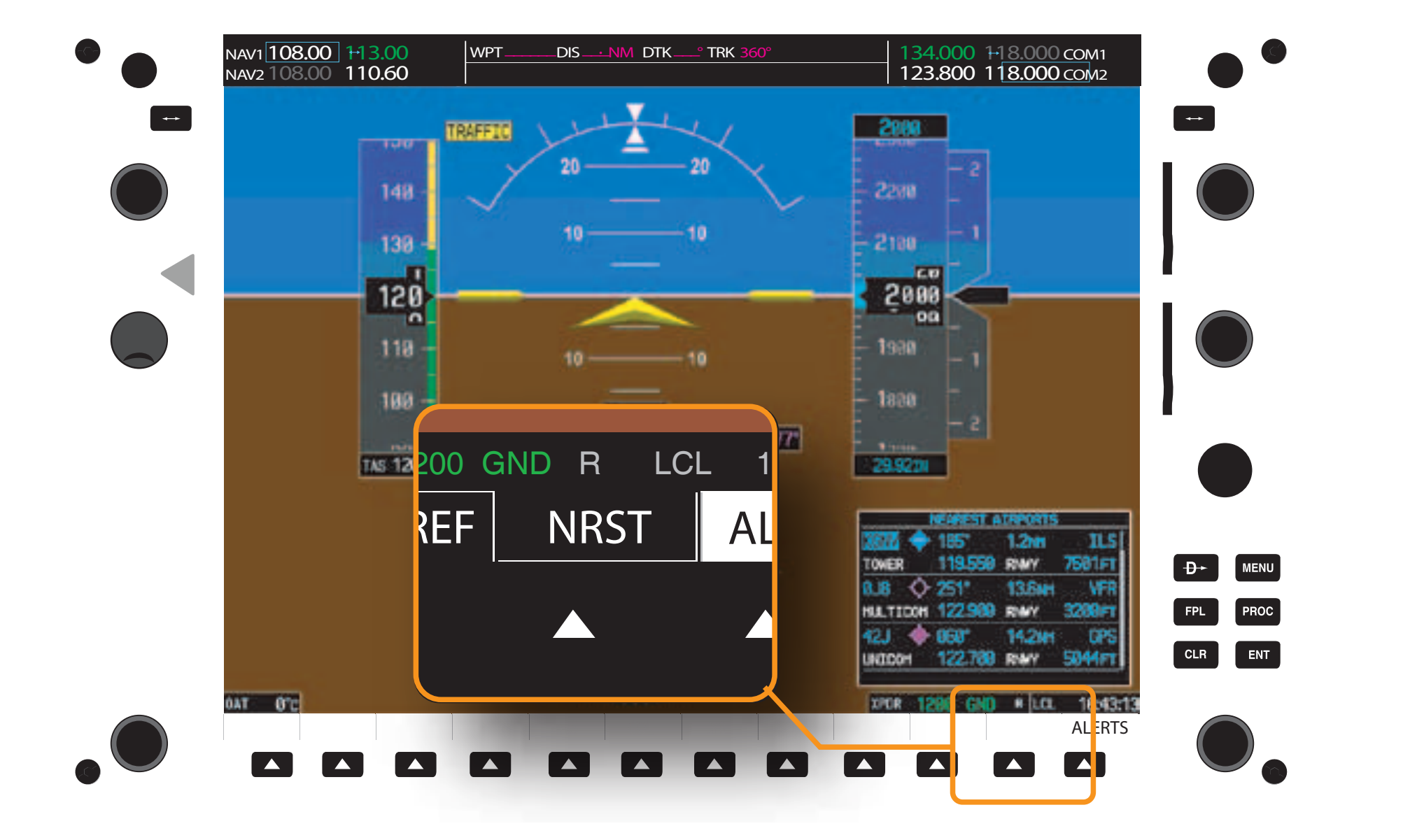
With the advancements in electronic databases, diverting to alternate airports has become easier. Simply by pressing a soft key on the PFD, pilots can access information for up to 25 of the nearest airports that meet the criteria set in the systems configuration page. [Figure 11-9] Pilots are able to specify what airports are acceptable for their aircraft requirements based on landing surface and length of runway.
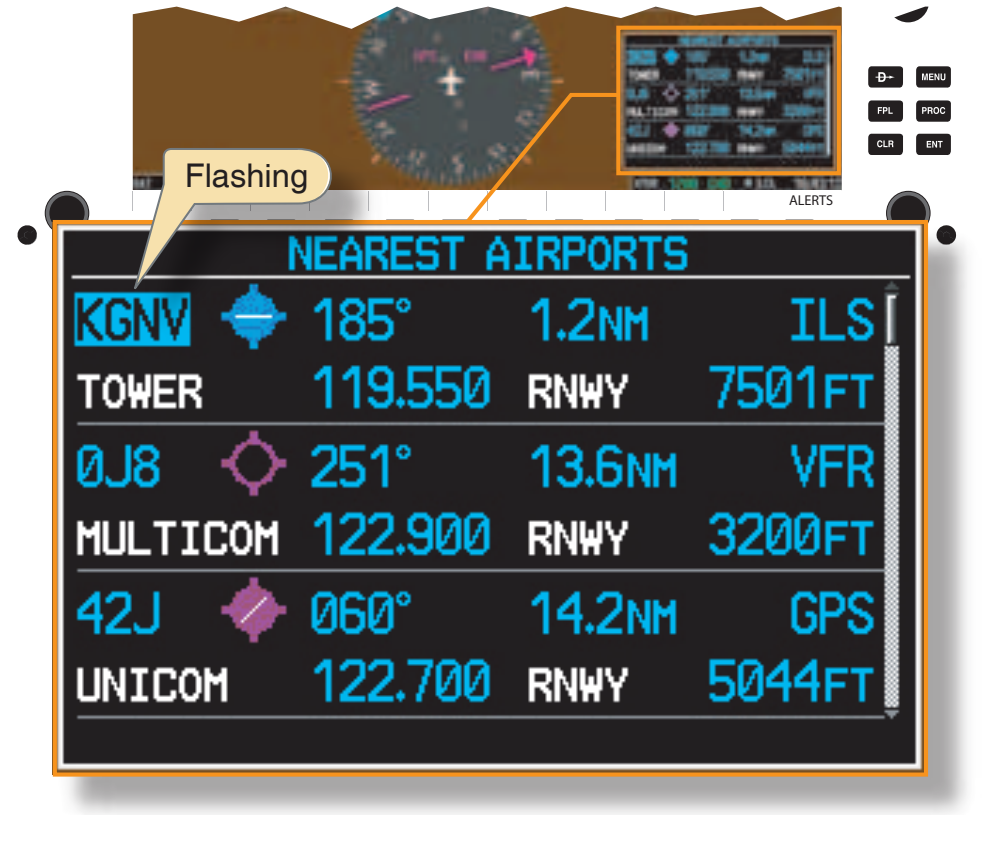
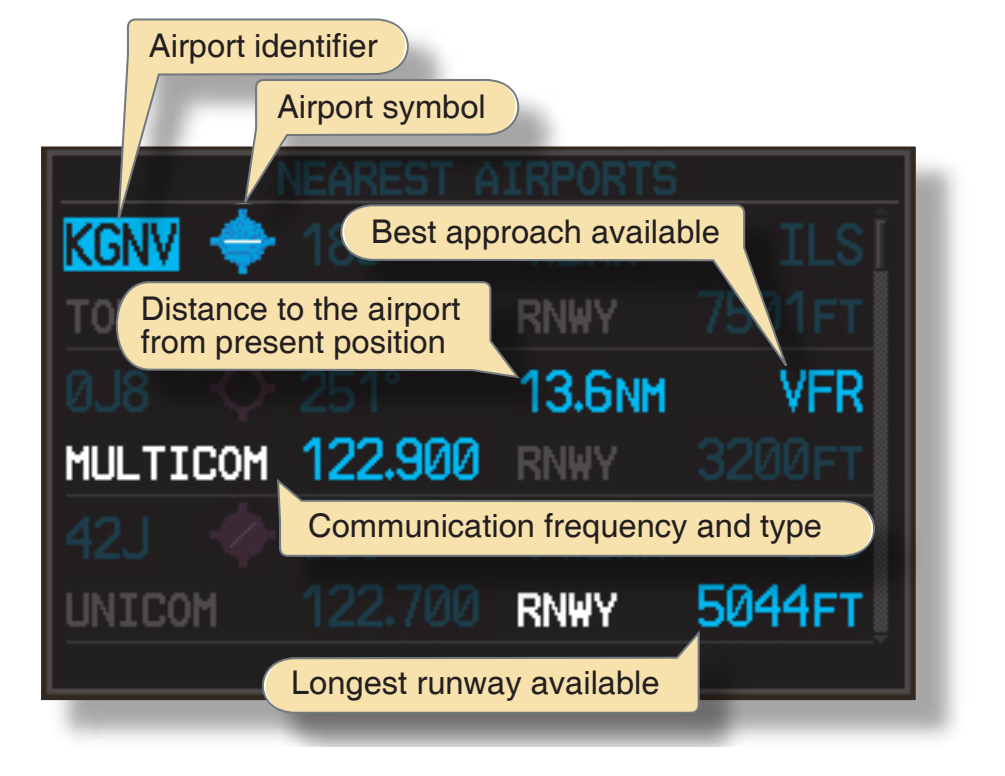
When the text box opens, the flashing cursor is located over the nearest airport that meets the criteria set in the auxiliary setup page as shown in Figure 11-10. Scrolling through the 25 airports is accomplished by turning the outer FMS knob, which is located on the lower right corner of the display screen. Turning the FMS knob clockwise moves the blinking cursor to the next closest airport. By continuing to turn the knob, the pilot is able to scroll through all 25 nearest airports. Each airport box contains the information illustrated in Figure 11-11, which the pilot can utilize to determine which airport best suits their individual needs.
Additional Information for a Specific Airport
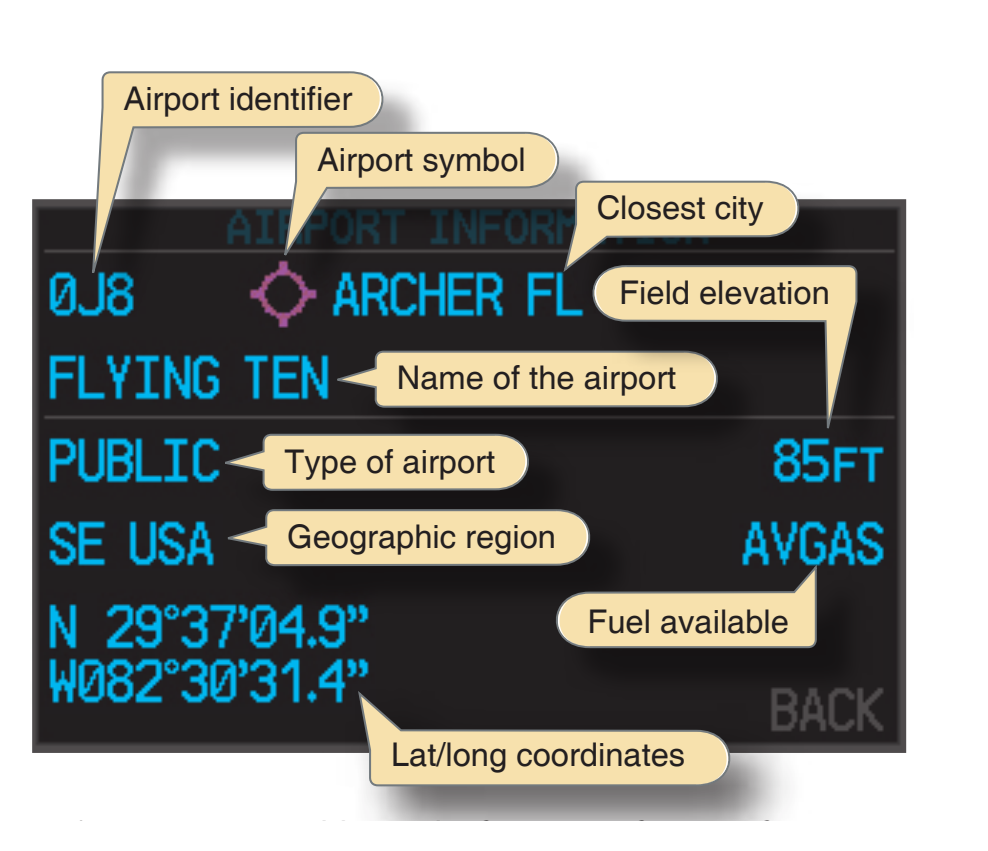
In addition to the information that is presented on the first screen, the pilot can view additional information as shown in Figure 11-12 by highlighting the airport identifier and then pressing the enter key.
From this menu or the previous default nearest airport screen, the pilot is able to activate the Direct-To function, which provides a direct GPS course to the airport. In addition, the pilot can auto-tune communication frequencies by highlighting the appropriate frequency and then pressing the enter key. The frequency is placed in the stand-by box of either COM1 or COM2, whichever frequency has the cyan box around it.
Nearest Airports Using the MFD
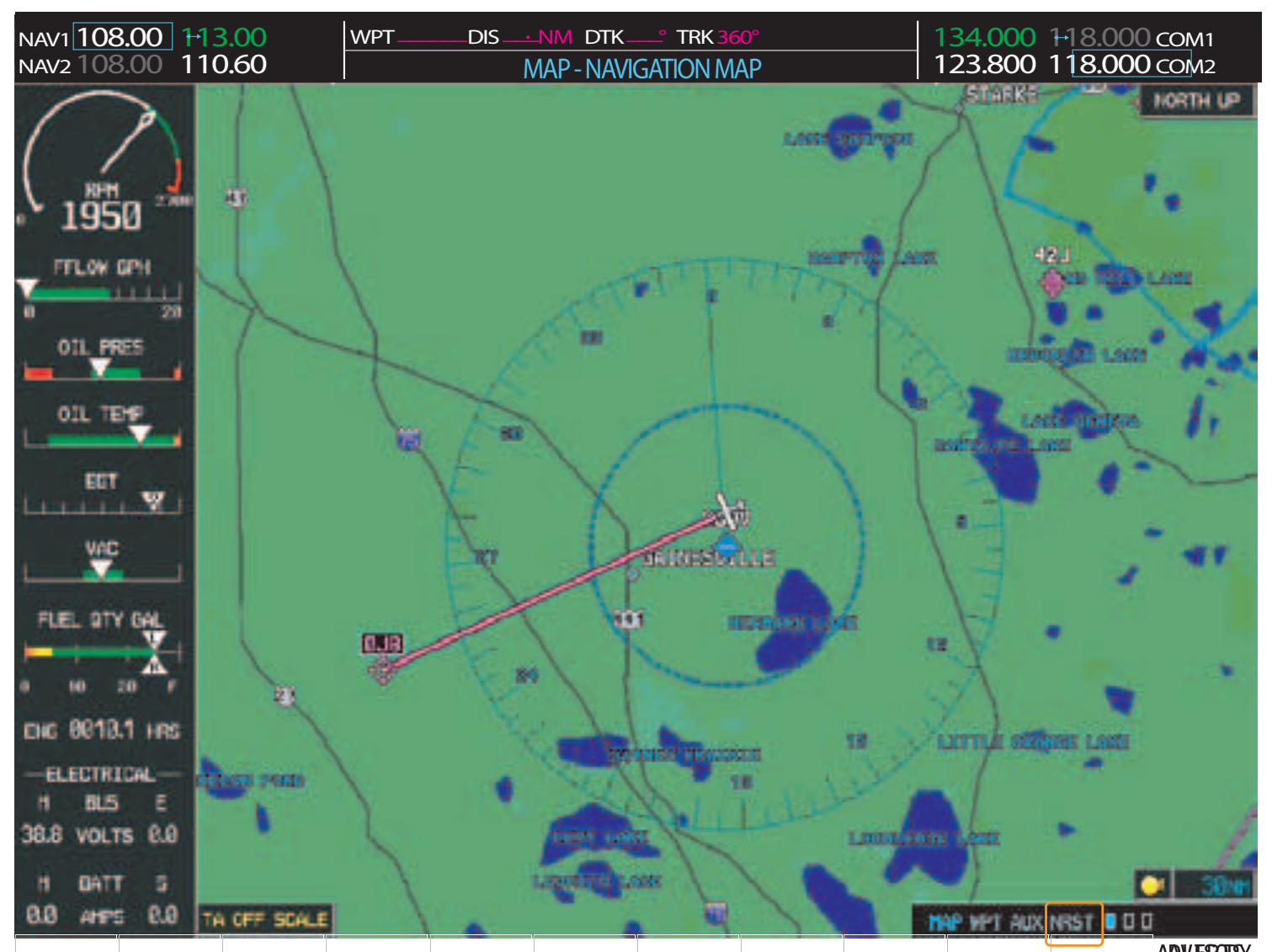
A second way to determine the nearest airport is by referencing the NRST Page Group located on the MFD. This method provides additional information to the pilot; however, it may require additional steps to view. [Figure 11-13]
Navigating the MFD Page Groups
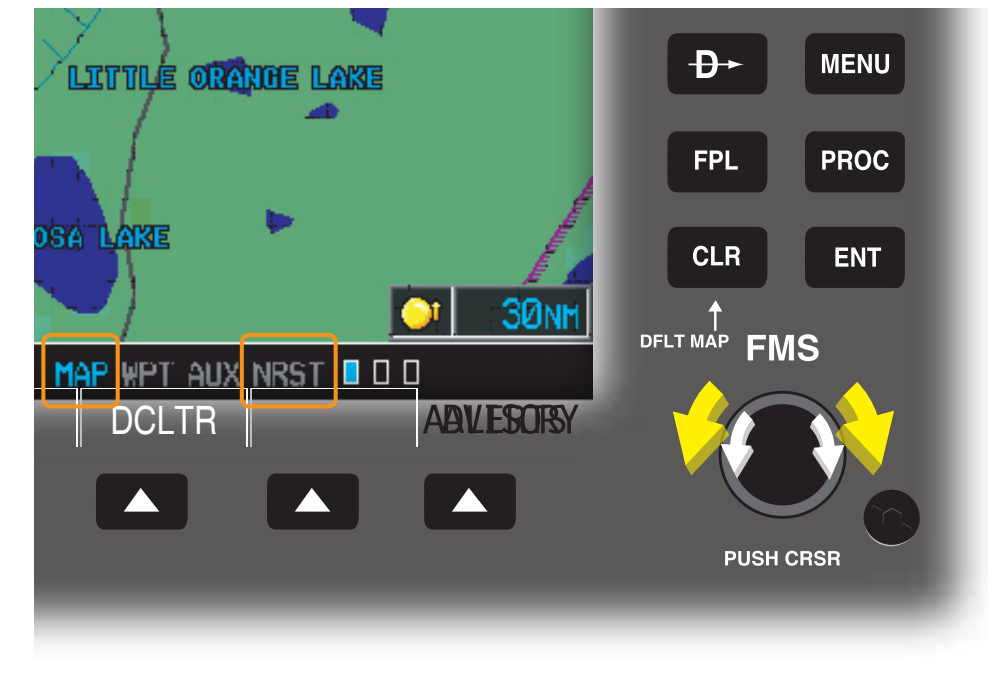
Most display systems are designed for ease of navigation through the different screens on the MFD. Notice the various page groups in the lower right corner of the MFD screen. Navigation through these four page groups is accomplished by turning the outer FMS knob clockwise. [Figure 11-14]
Within each page group are specific pages that provide additional information pertaining to that specific group. Once the desired page group and page is selected, the MFD remains in that configuration until the page is changed or the CLR button is depressed for more than 2 seconds. Holding the CLR button returns the display to the default moving map page.
Nearest Airport Page Group
The nearest airport page contains specific areas of interest for the airport selected. [Figure 11-15] The pilot is furnished information regarding runways, frequencies, and types of approaches available.
Nearest Airports Page Soft Keys
Figure 11-16 illustrates four specific soft keys that allow the pilot to access independent windows of the airport page. Selection of each of these windows can also be accomplished by utilizing the MENU hard key.